> ## Documentation Index
> Fetch the complete documentation index at: https://docs.routeway.ai/llms.txt
> Use this file to discover all available pages before exploring further.
# Server Tools
> Extend model capabilities directly in chat using @-tag syntax for Image Generation and Online Search.
Routeway Server Tools allow language models to execute server-side actions — such as generating images or searching the internet in real time — without requiring any client-side tool definitions or complex API schemas.
Server tools work directly in chat requests with **zero extra setup**: simply append the tool tag to your model ID using `@` syntax and start chatting.
Unlike custom function calling (where your application code receives tool calls and executes them locally), Server Tools are handled entirely on Routeway's infrastructure. Results are seamlessly integrated into the model's response.
***
## Available Server Tools
| Tool | Tag Syntax | Example Model String | Description |
| :------------------- | :--------------- | :--------------------------------- | :---------------------------------------------------------- |
| **Image Generation** | `@` | `qwen3.8-max-preview@flux-2-turbo` | Generates images in chat via an image generation model |
| **Online Search** | `@online` | `qwen3.8-max-preview@online` | Performs real-time Google searches for up-to-date knowledge |
***
## Image Generation
The Image Generation tool lets language models create visual content right from your chat prompt.
To enable Image Generation, combine a base text model with an image model using `@`:
```
@
```
For example, using `qwen3.8-max-preview@flux-2-turbo` routes your prompt to `qwen3.8-max-preview`, which can trigger `flux-2-turbo` to render the requested image.
### How It Works
1. Send a request with an `@` tag in the model field.
2. Ask the model to generate an image (e.g., *"Draw a majestic lion sitting on a cliff at sunset"*).
3. The server tool generates the image in a few seconds and returns it in the response as an inline HTML `![]() ` element.
### Response Format
The server tool delivers generated images as an inline HTML `
` element.
### Response Format
The server tool delivers generated images as an inline HTML `![]() ` tag directly inside the message content:
```html theme={null}
` tag directly inside the message content:
```html theme={null}
 ```
#### Example Payloads
```json theme={null}
{
"id": "chatcmpl-1784633736182-7a42142963b942aa",
"object": "chat.completion",
"created": 1784633752,
"model": "qwen3.8-max-preview@flux-2-turbo",
"system_fingerprint": null,
"choices": [
{
"index": 0,
"message": {
"role": "assistant",
"content": "Sure! Let me generate a cat for you.\n\n
```
#### Example Payloads
```json theme={null}
{
"id": "chatcmpl-1784633736182-7a42142963b942aa",
"object": "chat.completion",
"created": 1784633752,
"model": "qwen3.8-max-preview@flux-2-turbo",
"system_fingerprint": null,
"choices": [
{
"index": 0,
"message": {
"role": "assistant",
"content": "Sure! Let me generate a cat for you.\n\n "
},
"logprobs": null,
"finish_reason": "stop"
}
],
"usage": {
"prompt_tokens": 357,
"completion_tokens": 115,
"total_tokens": 472
}
}
```
```json theme={null}
data: {"id":"chatcmpl-1784615844951-9a94287c163e489b","object":"chat.completion.chunk","created":1784615863,"model":"qwen3.8-max-preview@flux-2-turbo","choices":[{"index":0,"delta":{"content":"\n\n
"
},
"logprobs": null,
"finish_reason": "stop"
}
],
"usage": {
"prompt_tokens": 357,
"completion_tokens": 115,
"total_tokens": 472
}
}
```
```json theme={null}
data: {"id":"chatcmpl-1784615844951-9a94287c163e489b","object":"chat.completion.chunk","created":1784615863,"model":"qwen3.8-max-preview@flux-2-turbo","choices":[{"index":0,"delta":{"content":"\n\n "},"finish_reason":null,"logprobs":null}],"system_fingerprint":null,"usage":null}
```
### Client Rendering & Compatibility
Rendering behavior depends on your chat client or frontend interface:
Most chat clients (like **SillyTavern**, LibreChat, or custom web UI frontends) automatically render HTML `
"},"finish_reason":null,"logprobs":null}],"system_fingerprint":null,"usage":null}
```
### Client Rendering & Compatibility
Rendering behavior depends on your chat client or frontend interface:
Most chat clients (like **SillyTavern**, LibreChat, or custom web UI frontends) automatically render HTML `![]() ` tags inline within the chat stream.
Some chat clients (like **JanitorAI**) do not automatically render HTML image tags inline. In these clients, copy the image URL from the `src` attribute (e.g. `https://api.routeway.ai/images/...`) and open it in your browser to view the image.
#### Example: SillyTavern
In [SillyTavern](/integrations/roleplay/sillytavern), generated images appear inline in the chat when you use a model tagged with an image server tool (for example `qwen3.8-max-preview@flux-2-turbo`):
` tags inline within the chat stream.
Some chat clients (like **JanitorAI**) do not automatically render HTML image tags inline. In these clients, copy the image URL from the `src` attribute (e.g. `https://api.routeway.ai/images/...`) and open it in your browser to view the image.
#### Example: SillyTavern
In [SillyTavern](/integrations/roleplay/sillytavern), generated images appear inline in the chat when you use a model tagged with an image server tool (for example `qwen3.8-max-preview@flux-2-turbo`):
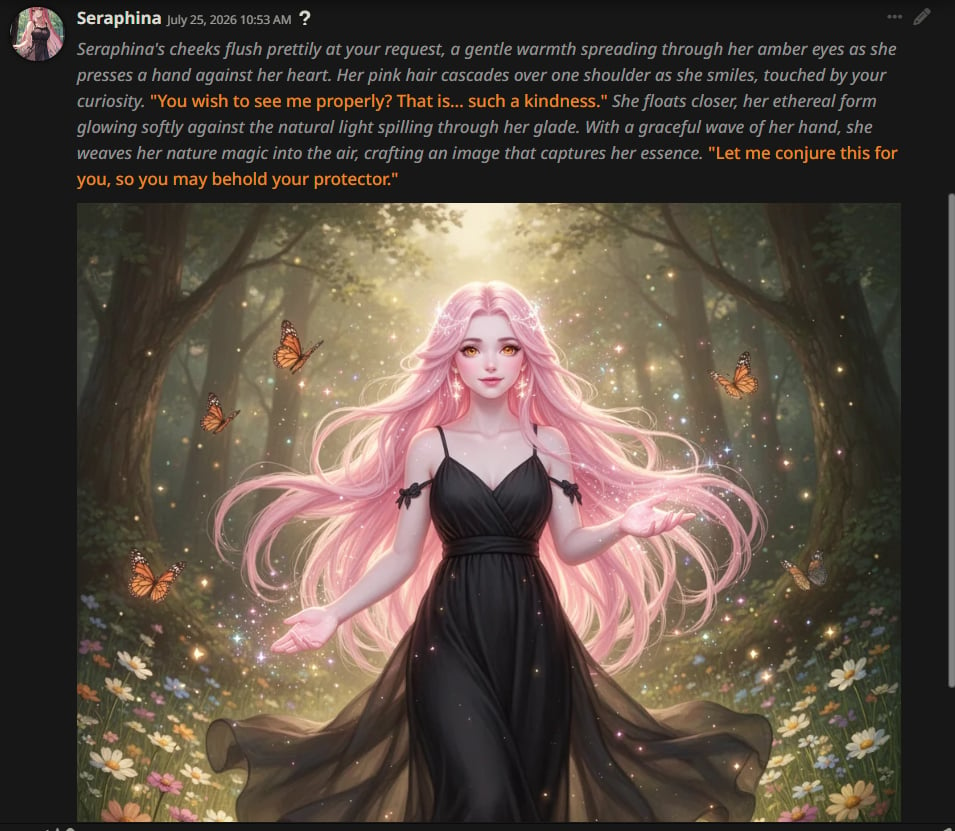 To display these images in SillyTavern, open **User Settings** (gear icon) on the top menu bar and **disable** **Forbid External Media**.
***
## Online Search
The Online Search tool connects language models to live internet data.
To enable Online Search, append `@online` to your model ID:
```
@online
```
For example, `qwen3.8-max-preview@online` or `gpt-4o@online`.
### How It Works
1. Send a request with `@online` appended to the model name.
2. Ask a question about current events, recent releases, live stock prices, or up-to-date information.
3. When the model needs additional real-time context, it automatically searches Google, processes the results, and incorporates fresh data into its answer.
Use `@online` when asking models about events after their knowledge cutoff date or for real-time information such as live sports scores, current news, or market data.
### Pricing
| Allowance | Condition |
| :-------------------------- | :----------------------------------------------------------------------- |
| **Up to 5 searches / day** | Default daily free allowance |
| **Up to 25 searches / day** | Account balance is greater than `$0`, or you have an active subscription |
| **\~\$0.007 per search** | After you exceed 25 searches in a day |
***
## Code Examples
You can use Server Tools with standard OpenAI SDKs or HTTP requests by passing the tagged model name in the `model` parameter.
```python theme={null}
import os
from openai import OpenAI
client = OpenAI(
base_url="https://api.routeway.ai/v1",
api_key=os.getenv("ROUTEWAY_API_KEY")
)
# Example 1: Image Generation in Chat
response = client.chat.completions.create(
model="qwen3.8-max-preview@flux-2-turbo",
messages=[
{"role": "user", "content": "Generate an image of a futuristic neon city at night."}
]
)
print(response.choices[0].message.content)
# Example 2: Real-time Online Search
search_response = client.chat.completions.create(
model="qwen3.8-max-preview@online",
messages=[
{"role": "user", "content": "What were the major technology news stories today?"}
]
)
print(search_response.choices[0].message.content)
```
```javascript theme={null}
import OpenAI from "openai";
const client = new OpenAI({
baseURL: "https://api.routeway.ai/v1",
apiKey: process.env.ROUTEWAY_API_KEY,
});
// Example 1: Image Generation
const imageRes = await client.chat.completions.create({
model: "qwen3.8-max-preview@flux-2-turbo",
messages: [
{ role: "user", content: "Generate an image of a cute kitten playing with yarn." }
],
});
console.log(imageRes.choices[0].message.content);
// Example 2: Online Search
const searchRes = await client.chat.completions.create({
model: "qwen3.8-max-preview@online",
messages: [
{ role: "user", content: "What is the latest score in the championship game?" }
],
});
console.log(searchRes.choices[0].message.content);
```
```bash theme={null}
# Image Generation
curl https://api.routeway.ai/v1/chat/completions \
-H "Authorization: Bearer $ROUTEWAY_API_KEY" \
-H "Content-Type: application/json" \
-d '{
"model": "qwen3.8-max-preview@flux-2-turbo",
"messages": [
{"role": "user", "content": "Generate an image of a cozy cabin in the woods."}
]
}'
# Online Search
curl https://api.routeway.ai/v1/chat/completions \
-H "Authorization: Bearer $ROUTEWAY_API_KEY" \
-H "Content-Type: application/json" \
-d '{
"model": "qwen3.8-max-preview@online",
"messages": [
{"role": "user", "content": "What is the latest status of space launch missions this week?"}
]
}'
```
***
## Best Practices
Server tools require no code updates or schema changes. Simply set the model ID string with the desired `@` tag.
Combine text models with any available image generation model supported by Routeway (such as `flux-2-turbo`).
If your chat UI doesn't display images directly inline, extract the image URL from the returned `src` attribute.
Add `@online` whenever your application requires access to live web data, current events, or real-time search results.
To display these images in SillyTavern, open **User Settings** (gear icon) on the top menu bar and **disable** **Forbid External Media**.
***
## Online Search
The Online Search tool connects language models to live internet data.
To enable Online Search, append `@online` to your model ID:
```
@online
```
For example, `qwen3.8-max-preview@online` or `gpt-4o@online`.
### How It Works
1. Send a request with `@online` appended to the model name.
2. Ask a question about current events, recent releases, live stock prices, or up-to-date information.
3. When the model needs additional real-time context, it automatically searches Google, processes the results, and incorporates fresh data into its answer.
Use `@online` when asking models about events after their knowledge cutoff date or for real-time information such as live sports scores, current news, or market data.
### Pricing
| Allowance | Condition |
| :-------------------------- | :----------------------------------------------------------------------- |
| **Up to 5 searches / day** | Default daily free allowance |
| **Up to 25 searches / day** | Account balance is greater than `$0`, or you have an active subscription |
| **\~\$0.007 per search** | After you exceed 25 searches in a day |
***
## Code Examples
You can use Server Tools with standard OpenAI SDKs or HTTP requests by passing the tagged model name in the `model` parameter.
```python theme={null}
import os
from openai import OpenAI
client = OpenAI(
base_url="https://api.routeway.ai/v1",
api_key=os.getenv("ROUTEWAY_API_KEY")
)
# Example 1: Image Generation in Chat
response = client.chat.completions.create(
model="qwen3.8-max-preview@flux-2-turbo",
messages=[
{"role": "user", "content": "Generate an image of a futuristic neon city at night."}
]
)
print(response.choices[0].message.content)
# Example 2: Real-time Online Search
search_response = client.chat.completions.create(
model="qwen3.8-max-preview@online",
messages=[
{"role": "user", "content": "What were the major technology news stories today?"}
]
)
print(search_response.choices[0].message.content)
```
```javascript theme={null}
import OpenAI from "openai";
const client = new OpenAI({
baseURL: "https://api.routeway.ai/v1",
apiKey: process.env.ROUTEWAY_API_KEY,
});
// Example 1: Image Generation
const imageRes = await client.chat.completions.create({
model: "qwen3.8-max-preview@flux-2-turbo",
messages: [
{ role: "user", content: "Generate an image of a cute kitten playing with yarn." }
],
});
console.log(imageRes.choices[0].message.content);
// Example 2: Online Search
const searchRes = await client.chat.completions.create({
model: "qwen3.8-max-preview@online",
messages: [
{ role: "user", content: "What is the latest score in the championship game?" }
],
});
console.log(searchRes.choices[0].message.content);
```
```bash theme={null}
# Image Generation
curl https://api.routeway.ai/v1/chat/completions \
-H "Authorization: Bearer $ROUTEWAY_API_KEY" \
-H "Content-Type: application/json" \
-d '{
"model": "qwen3.8-max-preview@flux-2-turbo",
"messages": [
{"role": "user", "content": "Generate an image of a cozy cabin in the woods."}
]
}'
# Online Search
curl https://api.routeway.ai/v1/chat/completions \
-H "Authorization: Bearer $ROUTEWAY_API_KEY" \
-H "Content-Type: application/json" \
-d '{
"model": "qwen3.8-max-preview@online",
"messages": [
{"role": "user", "content": "What is the latest status of space launch missions this week?"}
]
}'
```
***
## Best Practices
Server tools require no code updates or schema changes. Simply set the model ID string with the desired `@` tag.
Combine text models with any available image generation model supported by Routeway (such as `flux-2-turbo`).
If your chat UI doesn't display images directly inline, extract the image URL from the returned `src` attribute.
Add `@online` whenever your application requires access to live web data, current events, or real-time search results.