> ## Documentation Index
> Fetch the complete documentation index at: https://docs.routeway.ai/llms.txt
> Use this file to discover all available pages before exploring further.
# JanitorAI
> Connect JanitorAI to Routeway using the proxy configuration.
JanitorAI is a web-based character AI platform. You can route your JanitorAI conversations through Routeway by adding a proxy configuration.
Requires a valid Routeway API key. Get yours from the [dashboard](https://routeway.ai/dashboard/api-keys).
***
## Setup
In JanitorAI, go to **API Settings**.
Choose **Proxy** as the provider from the list.
Click **+ Add** under Proxy Configurations and fill in:
| Field | Value |
| ---------------------- | -------------------------------------------------------------------------------- |
| **Configuration Name** | Any label, e.g. `Routeway` |
| **Model Name** | A model ID from [routeway.ai/models](https://routeway.ai/models), e.g. `gpt-4.1` |
| **Proxy URL** | `https://api.routeway.ai/v1/chat/completions` |
| **API Key** | Your Routeway API key |
Click **Apply**, then make sure the Routeway proxy configuration is marked **Active**.
JanitorAI will now route your conversations through Routeway. Pick a character and begin.
***
## Troubleshooting
The most common causes:
* You selected a paid model but your Routeway account has no balance. Add funds from the [dashboard](https://routeway.ai/dashboard).
* The proxy URL is incorrect. It must be exactly `https://api.routeway.ai/v1/chat/completions`.
* Your API key has extra spaces — re-paste it carefully.
Try these steps:
1. Re-enter your API key
2. Refresh the page
3. Restart your browser
4. Try a different browser if the issue persists
Verify the model ID matches exactly. Browse available models at [routeway.ai/models](https://routeway.ai/models) or use the [models endpoint](https://api.routeway.ai/v1/models).
This error is **not** caused by Routeway. It appears when JanitorAI's own backend fails internally before your message ever reaches your configured proxy. Your request never makes it to Routeway.
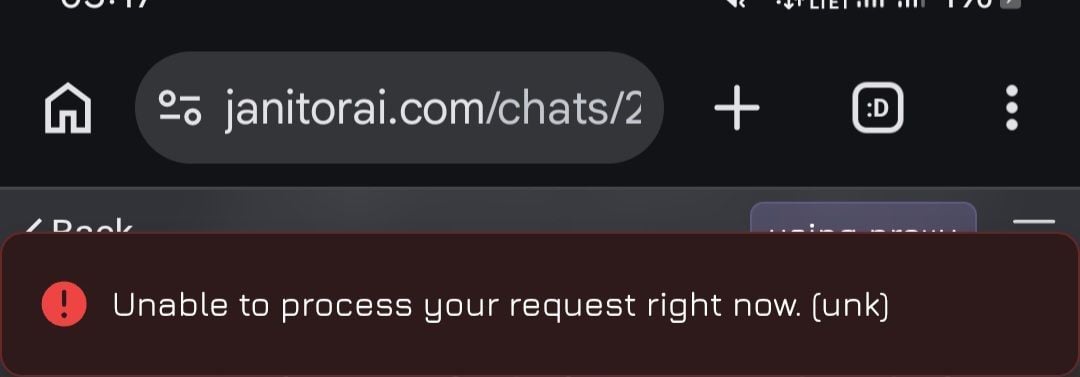 What you can do:
1. Wait a few minutes and try again — it usually resolves on its own
2. Refresh the page or restart the browser
3. Try a different character or start a new chat
4. If it persists, JanitorAI may be experiencing downtime
If you see the error message **"A network error occurred, you may be rate limited or having connection issues: Failed to fetch"**\*, the most common cause is an incorrect proxy URL.
Verify that your proxy URL is set to:
`https://api.routeway.ai/v1/chat/completions`
Make sure the URL does **not** include a trailing slash (`/`).
If responses consistently take more than **90–100 seconds** and eventually fail with an error, the most common cause is that **Text streaming is disabled** in JanitorAI.
To enable it:
1. Open any chat
2. Click **Customize**
3. Find **Text streaming**
4. Enable it
After enabling **Text streaming**, responses should begin appearing as they're generated instead of waiting for the entire completion, preventing most 90–100 second timeouts.
What you can do:
1. Wait a few minutes and try again — it usually resolves on its own
2. Refresh the page or restart the browser
3. Try a different character or start a new chat
4. If it persists, JanitorAI may be experiencing downtime
If you see the error message **"A network error occurred, you may be rate limited or having connection issues: Failed to fetch"**\*, the most common cause is an incorrect proxy URL.
Verify that your proxy URL is set to:
`https://api.routeway.ai/v1/chat/completions`
Make sure the URL does **not** include a trailing slash (`/`).
If responses consistently take more than **90–100 seconds** and eventually fail with an error, the most common cause is that **Text streaming is disabled** in JanitorAI.
To enable it:
1. Open any chat
2. Click **Customize**
3. Find **Text streaming**
4. Enable it
After enabling **Text streaming**, responses should begin appearing as they're generated instead of waiting for the entire completion, preventing most 90–100 second timeouts.