@ syntax and start chatting.
Unlike custom function calling (where your application code receives tool calls and executes them locally), Server Tools are handled entirely on Routeway’s infrastructure. Results are seamlessly integrated into the model’s response.
Available Server Tools
Image Generation
The Image Generation tool lets language models create visual content right from your chat prompt. To enable Image Generation, combine a base text model with an image model using@:
qwen3.8-max-preview@flux-2-turbo routes your prompt to qwen3.8-max-preview, which can trigger flux-2-turbo to render the requested image.
How It Works
- Send a request with an
@<image_model>tag in the model field. - Ask the model to generate an image (e.g., “Draw a majestic lion sitting on a cliff at sunset”).
- The server tool generates the image in a few seconds and returns it in the response as an inline HTML
<img>element.
Response Format
The server tool delivers generated images as an inline HTML<img> tag directly inside the message content:
Example Payloads
- Non-Streaming Response
- Streaming Chunk (SSE)
Client Rendering & Compatibility
Rendering behavior depends on your chat client or frontend interface:Inline Rendering (e.g. SillyTavern)
Most chat clients (like SillyTavern, LibreChat, or custom web UI frontends) automatically render HTML
<img> tags inline within the chat stream.Manual Link Viewing (e.g. JanitorAI)
Some chat clients (like JanitorAI) do not automatically render HTML image tags inline. In these clients, copy the image URL from the
src attribute (e.g. https://api.routeway.ai/images/...) and open it in your browser to view the image.Example: SillyTavern
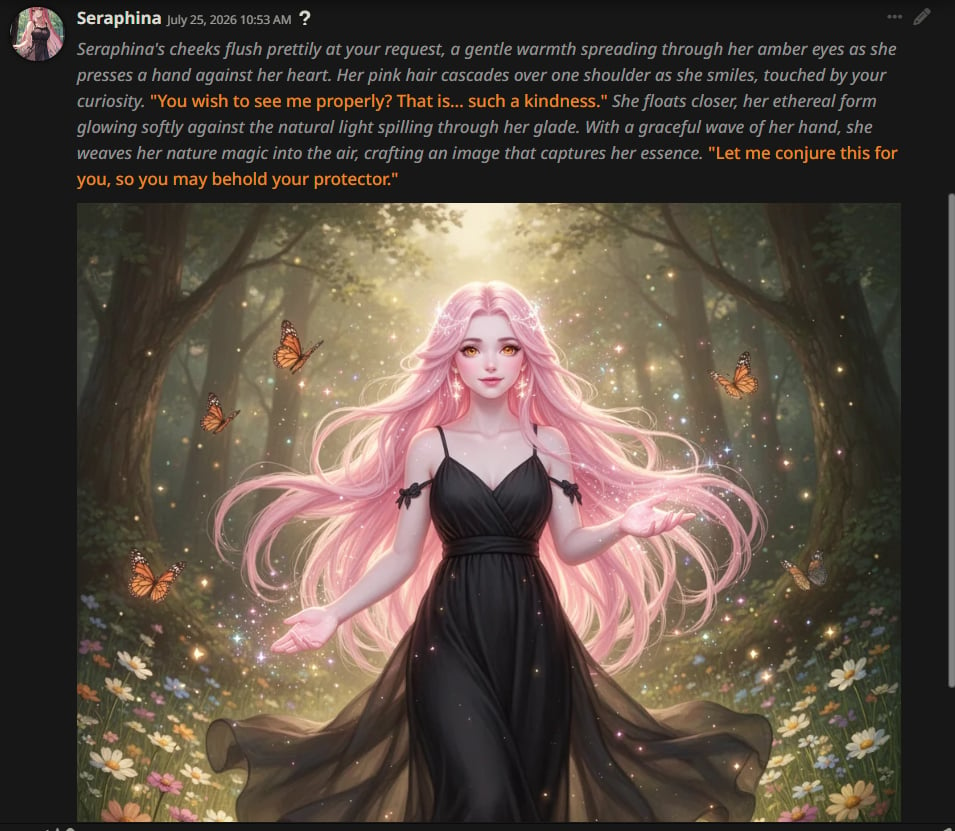
In SillyTavern, generated images appear inline in the chat when you use a model tagged with an image server tool (for exampleqwen3.8-max-preview@flux-2-turbo):
Online Search
The Online Search tool connects language models to live internet data. To enable Online Search, append@online to your model ID:
qwen3.8-max-preview@online or gpt-4o@online.
How It Works
- Send a request with
@onlineappended to the model name. - Ask a question about current events, recent releases, live stock prices, or up-to-date information.
- When the model needs additional real-time context, it automatically searches the web, processes the results, and incorporates fresh data into its answer.
Pricing
Want to use your own search provider key instead? See Web Search BYOK. Successful BYOK searches are not billed by Routeway for search usage.
Code Examples
You can use Server Tools with standard OpenAI SDKs or HTTP requests by passing the tagged model name in themodel parameter.
- Python
- Node.js
- cURL
Best Practices
No extra configuration
Server tools require no code updates or schema changes. Simply set the model ID string with the desired
@ tag.Choose compatible image models
Combine text models with any available image generation model supported by Routeway (such as
flux-2-turbo).Check client rendering capabilities
If your chat UI doesn’t display images directly inline, extract the image URL from the returned
src attribute.Use @online for up-to-date queries
Add
@online whenever your application requires access to live web data, current events, or real-time search results.